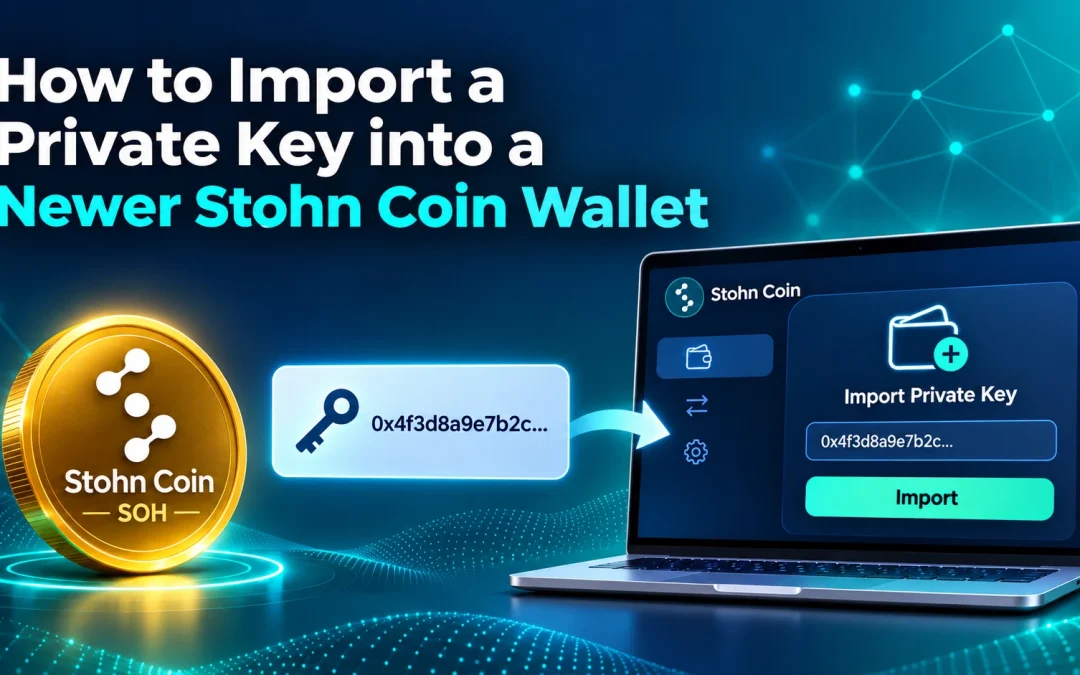
If you have tried importing a private key into Stohn Coin Core and received this message, your wallet may be using the newer descriptor format:
Only legacy wallets are supported by this command (code -4)Private-key importing is still supported. Legacy wallets use importprivkey, while descriptor wallets use importdescriptors.
This guide explains how to import a private key for a standard legacy SOH receiving address, also called a P2PKH address, into a descriptor wallet. It applies to the Stohn Core 3.3.0 implementation reviewed for this guide. Check your wallet type rather than assuming it from the application’s version alone.
Before You Begin
- Back up your wallet using File → Backup Wallet and preserve the original private-key backup.
- Use a trusted computer and a valid native SOH private key in Wallet Import Format (WIF).
- Try the process with a disposable key and a separate test wallet first.
- For historical recovery, let Core finish synchronizing and make sure the relevant historical blocks are available. A pruned node may not have the blocks needed for a full rescan.
Never paste your private key into a website, chat, support message, screenshot, or online checksum generator. Perform the following commands locally in Stohn Coin Core. Anyone with the private key can spend the funds it controls.
Importing a key into an internet-connected computer also means that key should no longer be treated as cold storage.
Step 1: Select the Correct Wallet
Open Stohn Coin Core and select the wallet that should receive the imported key.
If you create a separate wallet, leave Disable Private Keys, Make Blank Wallet, and External Signer unchecked. A normal nonblank wallet can generate its own change addresses when you later spend funds. Encrypt it with a strong password.
Open the built-in console, usually under Window → Console or Help → Debug Window → Console, depending on the build. If the console has a wallet selector, choose the intended wallet there too.
Run:
getwalletinfoConfirm that the wallet name is correct and these fields appear:
"private_keys_enabled": true,
"descriptors": true
If descriptors is false, you have selected a legacy wallet. This guide’s descriptor-import command is for wallets where it is true.
Step 2: Unlock an Encrypted Wallet
If your wallet is encrypted and locked, run:
walletpassphrase "YOUR_WALLET_PASSWORD" 600Replace YOUR_WALLET_PASSWORD with your actual wallet password, locally. The 600 unlocks the wallet for ten minutes. If the wallet relocks before you start importing, unlock it again.
Skip this step if your wallet is unencrypted. A wallet password and a private key are different pieces of information.
Step 3: Obtain the Descriptor Checksum
A descriptor tells the wallet which address construction to use with the key. For a standard legacy P2PKH address, use pkh(...).
Replace YOUR_SOH_WIF below with your private key:
getdescriptorinfo "pkh(YOUR_SOH_WIF)"The result should include:
"hasprivatekeys": trueIt also returns two important fields:
checksum: the checksum for the private descriptor you entered.descriptor: a public version of the descriptor, with its own checksum.
Keep these separate. The import step needs your original private descriptor plus the value from the separate checksum field.
If the command rejects your key, stop and check that it is a valid SOH WIF for the selected network. A Bitcoin or another cryptocurrency’s WIF may not be accepted. Do not try to convert a key by changing its first characters.
Step 4: Verify the Address Before Importing
Copy the complete public value returned in the descriptor field, including its checksum, and insert it here:
deriveaddresses "PUBLIC_DESCRIPTOR_FROM_STEP_3"The result is the SOH address described by that key and address construction. Compare it with the original address you intend to recover.
If the addresses differ, stop. This guide covers P2PKH addresses; a different address type, key encoding, or compression setting can produce a different address. Do not assume importing the wrong address will recover your funds.
Step 5: Import the Private Key
Insert your original private key and the separate checksum value from Step 3:
importdescriptors '[{"desc":"pkh(YOUR_SOH_WIF)#CHECKSUM","timestamp":0,"label":"Imported SOH key"}]'Replace:
YOUR_SOH_WIFwith the private key.CHECKSUMwith the checksum forpkh(YOUR_SOH_WIF).
Keep the square brackets, braces, quotation marks, parentheses, and # as shown. These examples use the wallet’s built-in console; shell-terminal quoting can differ.
Do not use the returned public descriptor field as the import value. It does not contain the private key and cannot provide signing authority. A private-key-enabled descriptor wallet may reject that public-only import.
The setting "timestamp":0 requests a full historical rescan to find transactions associated with the address. This can take considerable time.
Only for an address that has never been used, you may replace "timestamp":0 with "timestamp":"now" to skip the historical scan. Do not use "now" to recover an address with past transactions.
Step 6: Check the Result and Allow Scanning to Finish
A successful import returns a result containing:
[
  {
    "success": true
  }
]
Read any additional warnings or errors. A successful key import does not, by itself, prove the entire historical scan succeeded.
To check scanning status, run:
getwalletinfoDuring a scan, scanning may contain progress information. When the scan is no longer running, it returns:
"scanning": falseAllow synchronization and scanning to finish before judging the recovered balance. A zero balance is not proof that an imported key never held funds.
Step 7: Verify Ownership of the Imported Address
Use the address verified in Step 4:
getaddressinfo "YOUR_IMPORTED_SOH_ADDRESS"For a successful private-key import, expect:
"ismine": true,
"iswatchonly": false
Compare the transaction history and balance with your known records.
Clicking Receive → New Address may generate a different address from the wallet’s own keys. It does not necessarily display the address you just imported.
Step 8: Make a Fresh Backup
After importing, choose File → Backup Wallet again and save a fresh backup securely. A backup created before the import does not contain the newly imported key.
Keep your wallet password and original key backup secure. A single imported key covers only the address construction imported here; it does not restore every address from an old wallet or an entire recovery phrase. Future spending may also send change to other addresses in the destination wallet, making its complete backup important.
If the wallet is encrypted, lock it when finished:
walletlockCommon Errors
| Error or Symptom | What to Check |
|---|---|
| Only legacy wallets are supported by this command | You used importprivkey in a descriptor wallet. Follow the descriptor procedure above. |
| Error parsing JSON | importdescriptors requires an array of objects, not a bare key. Check the brackets and quotation marks in Step 5. |
| Invalid or missing descriptor checksum | Use the separate checksum field for the exact private descriptor you entered. The public descriptor’s checksum is different. |
| Invalid private key | Verify the WIF, network, and copied characters locally. Do not share the key when asking for help. |
| Wallet is locked | Unlock the intended encrypted wallet before importing. |
| Private keys are disabled | The selected wallet is watch-only. Use a separate wallet created with private keys enabled. |
| Import succeeds but history or funds are missing | Check the expected address, scan result, synchronization, available historical blocks, and whether additional keys or address types are involved. |
If you need help, share only the error message and public details necessary to explain the problem. Never include your private key, wallet password, recovery phrase, or a descriptor containing private keys.